Mail Service Usage Guide (Mailvelope tool with Gmail)
It is possible to send encrypted messages with attachments to Mail Service for further storing it in the Cardano blockchain.
Pay attention that if you want to use Mailvelope with your work account, you need to purchase a full license. Otherwise, use your personal email account.
Prerequisites
To save transaction (with message and attachment), you will need:
Google Chrome browser
Mailvelope extension
Public / private key pair, generated in Mailvelope
Recipient public key is downloaded
Recipient’s public key imported to Mailvelope
Mailvelope with configured Gmail API integration
Purchased package at PSG Self Service UI
API Token - generated at API Token page.
Steps
Create a new user (or use with existing one) and login to Self Service
Add email address and PGP public key at PGP Public Key page
Go to mail.google.com and click the Mailvelope button - the browser should open a new Mailvelope window
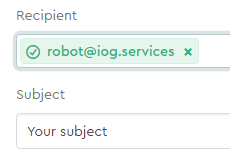
Add the recipient - recipient and fill the email subject
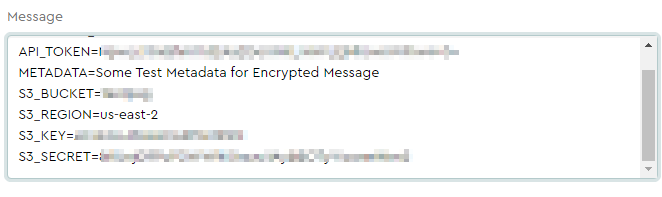
Prepare a message according to specific format
Attach one or more files to message if needed

Sign message by clicking Options and choosing your user from “Sign message as:” dropdown
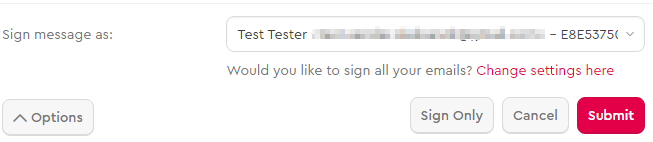
Sent email by clicking Submit button in the Mailvelope window
Wait for reply message (with link to the file on AWS S3 and link to the transaction in Cardano Explorer)
In case of success, you will get a message in reply:
Your message EMAIL_SUBJECT Thu Apr 29 11:56:34 GMT 2021 was processed successfully.

Transaction: https://explorer.cardano.org/en/transaction?id=<transactionId>

Attachments:
  http://aws_url/download/your_mail_com/96/test_attachment.txt
In case of failure, you will get the message in reply:
We could not process your message, subject: EMAIL_SUBJECT, sent date: Wed Apr 21 13:18:33 GMT 2021, please contact administrators.
Download file from AWS S3 bucket if needed
Email message format
API_TOKEN=your_api_token
METADATA=Some Test Metadata for Encrypted Message
S3_BUCKET=your_bucket_name
S3_REGION=your_bucket_region
S3_KEY=aws_user_access_key
S3_SECRET=aws_user_secret_key
PLAINTEXT_REPLY=true
BASE_URL=optional_custom_download_url
API_TOKEN - User token, generated at PSG Self Serve UI
METADATA - User message to be included in the transaction metadata (Optional).
Newline characters are not supported.
Use multiple METADATA fields in one message to conveniently add multiple lines of metadata
S3_BUCKET - AWS S3 bucket name
S3_REGION - AWS S3 region name for bucket
S3_KEY - AWS IAM user access key
S3_SECRET - AWS IAM user secret key
BASE_URL - Custom URL prefix for files saved on AWS S3 (Optional)
PLAINTEXT_REPLY - If set to true - response email will not be encrypted by the recipient key. Configured to false by default or if parameter is not specified. (Optional)
How to get recipient public key
Recipient addresses:
robot-testnet@iog.services (for PSG Testnet Self Serve UI)
robot@iog.services (for PSG Mainnet Self Serve UI)
Find public key by email using one of the following PGP Key Servers:
How to download file from S3 bucket
If you configured public access for all - you can download the file by executing GET request URL from Mail Service response (e.g.from browser)
If you set restricted access, you need to include custom headers to download request:
curl -i -H "aws_key: your_key" -H "aws_secret: your_secret" -H "aws_region: bucket_region" https://psg.iog.services:2001/download/bucketname/path-to-file